Connect Komga on iPhone and iPad
Use MangaFuru as a Komga reader on iPhone and iPad. Set up your server connection, open your library, and troubleshoot common connection problems.
Before you connect
Komga is a comic library you host and manage. MangaFuru is the reader on your iPhone or iPad; it does not create a server or include a manga catalog. Have your server URL and Komga username and password ready, and check that the account can access your library.
If your server is only available on your home network, connect your device to that network first. Access away from home depends on your own network setup. Only connect to a server you trust.
Connect your library
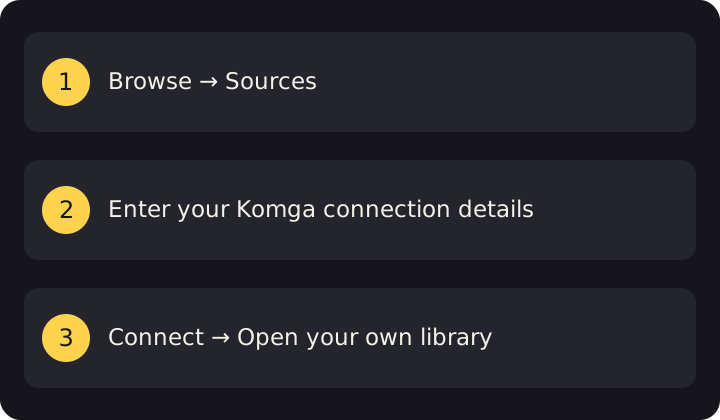
- Open Browse → +. Tap Browse in the tab bar, then the top-right + to open Sources.
- Add Komga. Tap the drive icon with a plus in the toolbar. Komga is built in; you do not need a repository.
- Enter the connection details. Add a display name, full server address, username and password. Use the address and protocol your server actually serves, not a link to an individual book.
- Connect and open your library. Tap Connect and wait for validation. Return to Browse, open the new source, select a title and start reading from its detail page.
If the connection fails
- Address or network error: check that you can reach your Komga server from the same device. Verify the hostname, port and any required path.
- Sign-in failure: check your Komga credentials and library permissions.
- Certificate error: fix the server’s HTTPS certificate configuration instead of disabling security protections.
- No connection slots: MangaFuru supports up to three Komga connections. Review your existing sources.
- Empty library: check that Komga has content and your account can access it. A successful connection does not mean books have been added to the server.
Reading, offline access and progress
Start reading from a title’s detail page. MangaFuru keeps your reading position so you can resume later. Reading modes depend on the content type, and chapter downloads depend on source support. Before going offline, finish your downloads and check that the chapters open. Connecting Komga does not download the entire library.
Your Komga environment remains responsible for server availability and content. This guide does not promise progress synchronization with other apps.